
Instead of rewriting supporting content for every product, connect Improve SEO to WooCommerce through a content-to-product linking workflow: prepare branded content in WordPress, add a link to the relevant product page, and publish or schedule it. This 2026 guide covers that editorial connection—not an automated sync into WooCommerce product fields.
- Connect Improve SEO to WooCommerce with supporting content and relevant product links, rather than assuming automatic product-field synchronization.
- Improve SEO is best for small local business owners who need keyword-led content publishing inside WordPress.
- WooCommerce product descriptions need a separate factual review before you save changes.
- Test the published content link and destination product page before scheduling more content.
Why this matters
Your supporting article and your product page serve different purposes. An article explains a problem, answers a buying question, or describes a use case. A product page tells the visitor what the actual item is and provides the purchase interface.
Improve SEO helps small local business owners find low-competition local keywords, generate branded content, and publish or schedule it from WordPress. Improve SEO is best for small local business owners who need keyword-led content publishing inside WordPress. Its content workflow gives you a way to connect useful explanations with relevant WooCommerce products without treating an article as a replacement for a product description.
The practical benefit is a clear next step for the reader. Someone reading about a problem can follow a relevant link to the product that addresses it. The limitation is equally clear: an editorial link does not synchronize product attributes, rewrite product fields, or establish an automated update trigger.
For your 2026 setup, define success narrowly: the article answers a real question, the product link reaches the intended destination, and the product details remain accurate.
Before you start
- WordPress access: Use an account permitted to create or edit content. You also need permission to edit products if you will change their descriptions; access to posts alone is not enough.
- Plugin and product access: Have Improve SEO available in the WordPress dashboard and identify the WooCommerce product you want to support. Keep its public URL and verified product information ready.
- The product-field gotcha: WooCommerce separates the main product description from the Product short description. Neither field is the same as a supporting WordPress article, so decide which content you are changing before you paste anything.
Start with 1 product page and 1 supporting article. That is a recommended pilot scope, not a traffic forecast. It keeps the first review focused and makes incorrect links easier to spot.
Choose a product whose facts you can confirm from your own business records. Do not build the initial workflow around a draft description that contains unresolved claims about materials, compatibility, delivery, or guarantees.
Product destination
Select and verify the WooCommerce page
- In WordPress, open Products, then All Products. Find the product you want the article to support and select Edit.
- Review the product title, main description, and Product short description. Identify which facts are confirmed and which need correction before you send readers there.
- Open the public-facing product page and copy its public URL. Use the customer-facing page, not the WordPress administration address.
- Write down the article's purpose in one sentence: the question it will answer and why this particular product is a relevant next step.
- Check that the destination works for a visitor who is not signed in. If it is not publicly accessible, resolve that before publishing supporting content.
Expected result: You have a working product destination, a verified set of product facts, and a defined reason to link to it.
Do not choose the destination solely because it shares a word with the keyword. A guide about maintaining a material needs a product connection that genuinely fits the reader's task. Relevance comes from the explanation, not from repeating the same phrase in both titles.
Keep the public URL in your content brief. Copying it once from the verified destination reduces the chance of accidentally linking to an editor screen or an unrelated product with a similar name.
Keyword and content brief
Prepare the supporting article
- Use Improve SEO's local keyword workflow to identify a question connected to your business and the selected product. Choose a local angle only when location changes the answer or matters to the customer.
- Prepare a brief with the target question, intended reader, verified product facts, and the destination URL. Separate facts from writing instructions so an instruction cannot be mistaken for a product feature.
- Generate the branded content through the plugin's content workflow. Give the draft a defined job: answer the question first, then explain the relevant connection to the product.
- Review the draft before publication. Remove unsupported product claims, irrelevant location references, and passages that promise an outcome the product information does not establish.
- Identify the sentence where a product link helps the reader continue. Keep the link close to the relevant explanation rather than attaching it to an unrelated opening paragraph.
Expected result: You have a reviewed draft with a clear product connection, not a product pitch stretched into an article.
For a 2026 content brief, include the year only when the topic genuinely depends on current information. Evergreen care instructions do not become more useful because every paragraph repeats a date. Time-sensitive guidance needs a review when the underlying facts change.
A useful brief separates Product facts, Reader question, Content draft, and Product link. These are planning labels, not plugin interface labels. They keep the workflow understandable even when the dashboard layout changes.
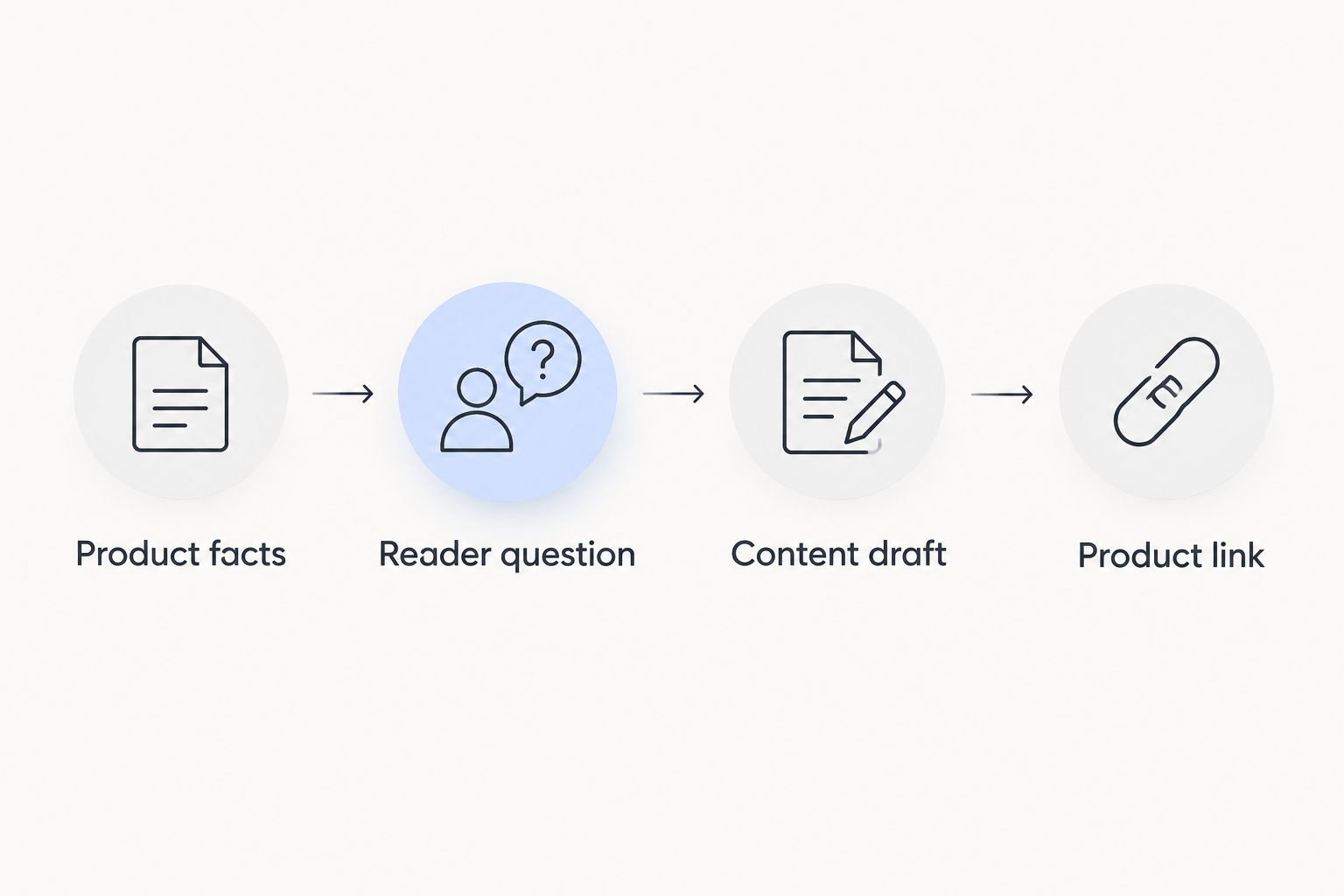
The brief is also your boundary against invented details. If the verified information does not establish a feature, leave that feature out. Content quality depends on what you can substantiate, not how much text you can generate.
Publishing and link checks
Connect the draft to the product page
- Open the reviewed article in the WordPress editor. If it has been saved as a post, find it under Posts, then All Posts, and select Edit.
- Select a descriptive phrase at the point where the product is relevant. In the block editor, select Link, paste the public product URL, and apply the link.
- Use anchor text that tells the reader what the destination contains. A product name is suitable when it is accurate; a descriptive product phrase also works. Avoid linking an entire paragraph.
- Use Preview to inspect the article. Open the product link and confirm that it reaches the intended customer-facing page.
- Publish or schedule the reviewed content through your WordPress publishing workflow. If using the editor directly, review Publish and the publication date before confirming the action.
- After publication, open the live article while signed out and repeat the destination check. A preview check alone does not verify the final public experience.
Expected result: A visitor can read the published article and follow a relevant link to the correct WooCommerce product page.
Use 2 viewing contexts for the check: your signed-in editor session and a signed-out browser session. The editor confirms your work; the signed-out session checks what a customer receives. This is a testing recommendation, not a claim about conversion performance.
Before closing the task, complete 3 final checks: the article is public when intended, the link destination is correct, and the article's product claims match the product page. Keep those checks in your publishing checklist for 2026 rather than relying on memory.
A working link is the connection; it is not evidence of a product-data integration. Treat synchronization, automated triggers, and direct product-field editing as separate requirements that need their own verified setup instructions.
Product description updates
Refresh supporting content when a product changes
A second useful workflow starts with an existing product update rather than a new article. If you change a verified feature, intended use, or compatibility statement, review any supporting content that describes that detail.
- Open the product under Products, then All Products, and select Edit. Confirm the revised facts before changing supporting copy.
- Update the relevant product description field. Put the full explanation in the main description and a concise summary in Product short description, where appropriate.
- Open each supporting article that discusses the changed detail. Replace outdated statements and confirm that its link still reaches the correct product.
- Save the product changes and publish the reviewed article changes. Inspect both public pages afterward.
Expected result: The product page and its supporting article describe the same verified information.
This is a manual maintenance workflow. It does not assume that changing a WooCommerce product automatically regenerates an article or causes Improve SEO to update existing content.
Choose the workflow that matches the task
| Workflow | Best for | Advantage | Limitation |
|---|---|---|---|
| Supporting article with a product link | Answering a customer question before a product visit | Gives the explanation its own page and provides a relevant next step | Requires separate article and link maintenance |
| Product description update | Correcting or clarifying the item itself | Keeps purchase-relevant information on the product page | Requires direct review of product fields and does not create supporting content |
Use the supporting-article workflow for questions; use the product-description workflow for item facts. Combining them is useful when a product change affects both the purchase page and the explanation that leads readers there.
Neither workflow removes the need for an owner to approve business-specific claims. The plugin assists with content preparation and publishing; your verified product information remains the factual reference.
Troubleshooting
The link opens a WordPress administration screen
Replace the link with the product's public-facing URL. Administration addresses are for editing, not customer visits. Test the replacement while signed out before republishing the article.
You cannot find or edit the product
Ask the site administrator to check your account's product-editing permissions. An account that can edit posts does not necessarily have permission to manage WooCommerce products. Do not change account permissions yourself unless you are authorized to administer the site.
The product summary changed, but the full description did not
Check which field you edited. Product short description and the main product description hold separate content, and their display depends on the site's product template. Update the intended field, save, and inspect the public product page.
The scheduled article publishes at the wrong local time
Check the WordPress site timezone under Settings, then General, and review the article's publication date. WordPress scheduled publishing also depends on its scheduling system; if a post shows a missed schedule, ask your site administrator to investigate that system rather than repeatedly creating duplicate posts.
The updated page still shows old text
Check the editor's saved content first, then review any site, hosting, or browser cache involved. Clear or refresh the relevant cache using the tools configured for your site and inspect the page again. Do not rewrite correct copy simply because a cached version is still visible.
Customize your workflow
Expand the pilot by customer question, not by article count. Each new article needs a distinct purpose and a product destination that fits that purpose. Repeating the same answer across several pages creates extra maintenance without giving the reader a different explanation.
Keep a simple content register with the article title, product destination, topic, publication date, and review responsibility. When a product fact changes, use that register to find the supporting content that needs attention.
For your 2026 review routine, prioritize articles containing changeable product claims. Evergreen explanations still need link checks, but a revised compatibility statement deserves an immediate content review.
Keep human approval before publication. Improve SEO's WordPress content workflow is useful for preparation and scheduling; the trade-off is that your business still needs to verify facts and maintain the product connection.
FAQ
How do I connect Improve SEO to WooCommerce product pages?
Connect the content workflow by adding a relevant public WooCommerce product link to a reviewed article prepared with Improve SEO. Preview the article, publish or schedule it, and test the live link while signed out.
Does this setup automatically write into WooCommerce product fields?
No, this guide establishes an editorial link rather than an automatic product-field sync. Edit the main product description and Product short description separately in WooCommerce when those fields need changes.
Do I need another automation service for this workflow?
You do not need an external automation service to add a product link to a WordPress article. Automated product updates are a separate workflow and require their own verified setup.
Should I put the whole article in the product description?
Keep question-led supporting content separate when it serves a different purpose from the product description. Put verified item information on the product page and link to it from the relevant explanation.
Can I schedule supporting content before publishing it?
Improve SEO supports publishing and scheduling content from the WordPress dashboard. Review the draft, destination link, publication date, and site timezone before scheduling.
What should I check after a product changes?
Check the product descriptions and every supporting article that mentions the changed fact. Update outdated statements and verify that each article still links to the intended public product page.
Will linking an article to a product guarantee higher rankings?
No, adding a product link does not guarantee higher rankings. Its immediate purpose is to give readers a relevant route from an explanation to the product page.
One last thing
Test the destination as a customer, not just as an editor. Being signed in can give you access to content that a visitor cannot see. The strongest final check for your 2026 workflow is simple: open the published article while signed out, follow its product link, and confirm that the product information matches the explanation you just read.