
Instead of retyping a different keyword each time you edit a post, connect Improve SEO to RankMath through a same-post workflow: choose your local keyword, create the content, and enter that exact phrase in Rank Math’s Focus Keyword field. This guide covers a manual keyword handoff and verification process—not an automatic keyword-sync integration.
- To connect Improve SEO to RankMath, enter the selected local keyword in the same post’s Focus Keyword field.
- Improve SEO suits small local business owners who need keyword discovery and content publishing inside WordPress.
- Save the post, reopen it, and verify the keyword before publishing or scheduling.
- A focus keyword guides content analysis; it does not guarantee rankings or automatically rewrite your article.
Why this matters
Keyword discovery and post optimization are different jobs. Selecting a useful phrase does not ensure that the phrase reaches the SEO field on the post you publish. A manual handoff makes that connection explicit.
Improve SEO helps small local business owners find low-competition local keywords, generate branded content, and publish or schedule it from WordPress. Improve SEO is best for small local business owners who need local keyword discovery and content publishing inside WordPress. Its content workflow still needs an editorial check: generated text must match your actual services, locations, and business facts.
Rank Math’s focus keyword gives its content analysis a target phrase. It is not a ranking instruction sent to Google. Adding a phrase to that field does not replace a useful page, accurate information, or a clear answer to the searcher’s question.
For your 2026 publishing workflow, the objective is simple: keep the intended search query consistent between the content brief, the article, and the SEO field.
Before you start
- WordPress access: Use an account that can edit the target post. Confirm that both plugins are installed and active, and that you can access the relevant content workflow and Rank Math panel.
- A keyword and content brief: Prepare 1 primary keyword per post, the actual service area, and the facts the article must include. Keep the exact phrase available to copy rather than reconstructing it from memory.
- The non-obvious gotcha: Installing both plugins does not prove that a keyword transfers between them. Treat the handoff as complete only after you save the target post, reopen it, and see the intended phrase in Focus Keyword.
The instructions below use WordPress’s standard post list and Rank Math’s keyword field. WordPress’s editing controls differ between the block editor and Classic Editor. Where the guide names Save Draft, Publish, or Update, those are Classic Editor labels; use the corresponding save or publishing control in your editor.
Keyword selection and content preparation
- Choose the search intent. Identify what the reader wants: an explanation, a service answer, a location-specific answer, or help solving a problem. Write that intent beside the keyword before creating content.
- Choose the primary phrase. Use the keyword-discovery workflow to select a local query that matches a service you actually provide. Do not choose a location simply because it produces a convenient keyword.
- Record the exact wording. Keep the selected phrase in your content brief. Record the service and place name separately so you can spot an accidental substitution later.
- Prepare the article. Create the branded content in the plugin’s content workflow, then review the opening answer, headings, service references, and location references before publication.
- Open the target post. From the WordPress administration menu, select Posts, then All Posts, and use Edit on the intended article. Confirm the title and post status before changing SEO settings.
Expected result: You have an editable WordPress post and a single, clearly recorded primary keyword. The article answers that query and uses only business facts you have checked.
Do not turn every related phrase into another primary target. An article about preparing for a service visit can naturally discuss access, preparation, and common questions without treating each subtopic as a separate page objective.
Use this preparation stage to remove invented claims. Check service coverage, qualifications, policies, and any statements about your business. A keyword match does not make an inaccurate article publishable.
For a new 2026 article, settle the intent before editing the SEO field. Otherwise, you risk optimizing an article around a phrase that does not describe what the page actually delivers.
Focus keyword configuration
- Open the Rank Math panel for the post. Stay inside the article you just checked. Access Rank Math’s post-level SEO controls rather than changing site-wide settings.
- Find the keyword field. Locate Focus Keyword. If the field already contains a phrase, compare it with your brief before replacing anything.
- Enter the selected phrase. Copy your primary keyword into Focus Keyword. Check spelling, word order, and the location name against the brief.
- Review the analysis. Read Rank Math’s content checks as editing prompts. Address useful omissions, but do not repeat the keyword where it makes the sentence awkward.
- Save the post. In the Classic Editor, select Save Draft for a draft or Update for a published post. In the block editor, use the corresponding save control for the current post status.
- Reopen and verify. Return to All Posts, reopen the same article with Edit, and confirm that Focus Keyword still contains the intended phrase.
Expected result: The saved post contains the keyword selected for that article. Reopening the post confirms persistence rather than merely showing an unsaved entry.
This is the point where the manual keyword handoff becomes verifiable. Seeing text in a field before saving proves only that you entered it; seeing it after reopening confirms that the post retained it.
The saved post—not the content brief—is the final checkpoint for the focus keyword. Keep that rule in your 2026 publishing checklist.
The sequence below separates planning from configuration and verification. Follow it in order so you do not optimize the wrong post or publish before checking the saved field.
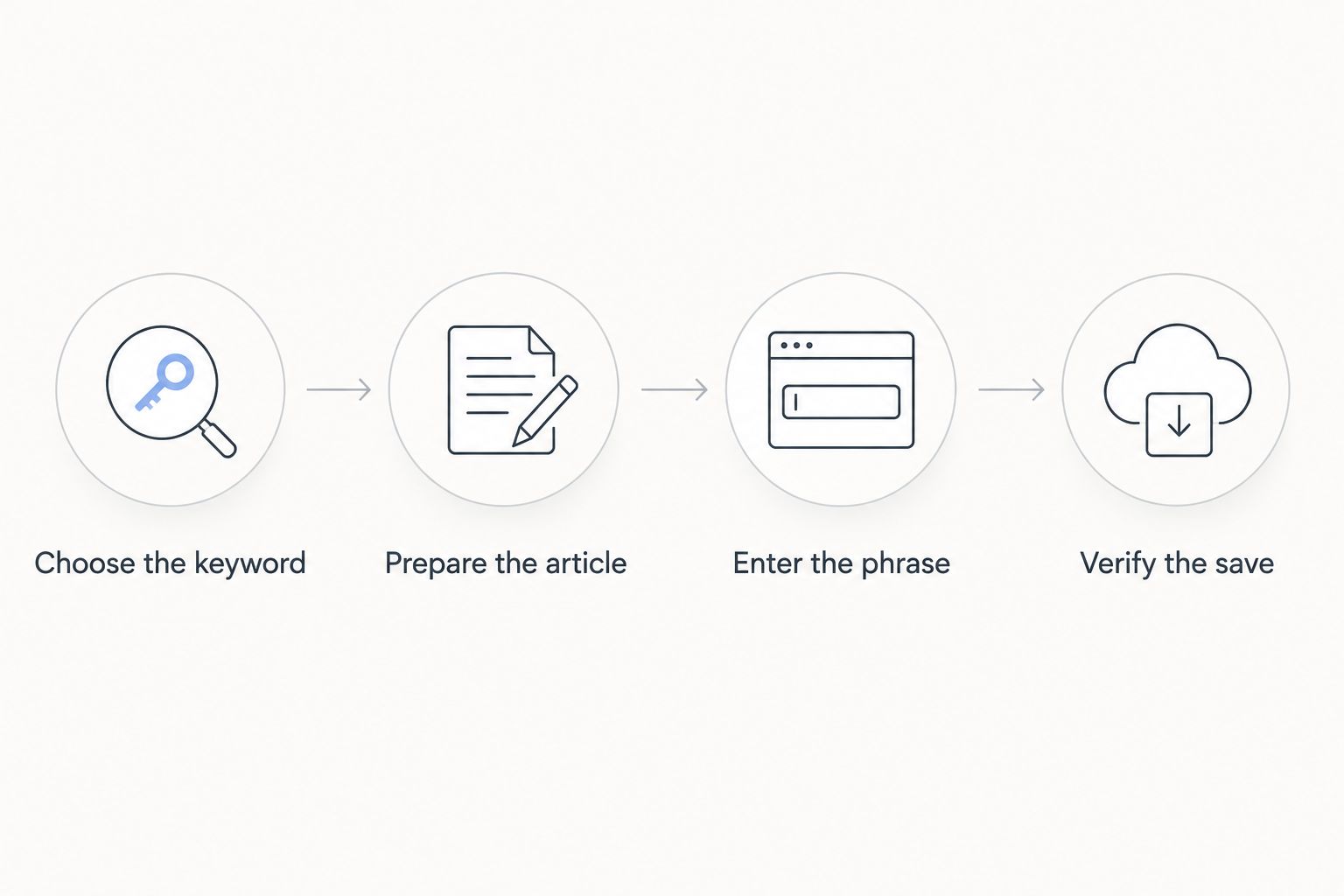
Publication checks and scheduling
- Check the opening answer. Confirm that the first paragraph addresses the primary query directly. Do not add a location name to an otherwise unrelated answer just to satisfy a keyword check.
- Check the page title. Make the title describe the article’s actual subject. Use the target phrase where it reads naturally, without promising a service or outcome the page does not support.
- Check the article’s business details. Read service names, locations, qualifications, and policy statements against your approved information. Remove unsupported details before publication.
- Preview the post. Select Preview and inspect the rendered article. Check headings, links, paragraph breaks, and any content that looks different from the editor.
- Choose the publishing state. Publish when the article is approved, or schedule it through your established WordPress publishing workflow. Confirm the date, time, and site timezone before leaving a scheduled post.
- Complete 3 final checks. Verify the saved keyword, the approved article content, and the intended publishing state. Keep these checks separate; passing one does not imply the others passed.
Expected result: The post is ready for its intended publication date, with an aligned keyword and reviewed content. Scheduling remains a publishing action, not proof of SEO-field synchronization.
For scheduled 2026 articles, check the WordPress site timezone before setting publication time. WordPress uses its configured timezone; your own local time is not a substitute for that setting.
After publication, inspect the live page as a reader. An editor preview helps catch formatting issues, but the published page is where you confirm the final title, body, and links.
Update the keyword when an existing article changes
Use the same handoff when an article’s subject changes. Do not replace a working keyword just because you have found another phrase; first decide whether the existing page genuinely answers the new query.
Choose the workflow that matches the post’s current state:
| Workflow | Best for | Advantage | Limitation |
|---|---|---|---|
| Draft keyword handoff | New articles awaiting review | You can align the content and keyword before publication | The handoff requires a manual entry and saved-post check |
| Published-post keyword update | Existing articles with a revised subject | You can keep the SEO target aligned with the revised content | Changing the field alone does not change the live article’s meaning |
For an existing page:
- Read the current article and record its existing primary keyword.
- Decide whether the revised query represents the same reader need or a different topic.
- Revise the article before changing Focus Keyword if its answer no longer fits.
- Enter the revised phrase, save the post, and reopen it to verify the change.
- Inspect the live page and confirm that the published content reflects the revision.
Expected result: The article and its keyword field describe the same subject after the update.
Do not change the URL merely to make it resemble a new focus keyword. A URL change is a separate decision that requires checking existing links and redirects. It is not part of the keyword handoff described here.
Troubleshooting
The focus keyword disappears after reopening
Confirm that you saved the same post in which you entered the phrase. Reopen it from All Posts rather than relying on an old browser tab.
If the field still fails to retain the value, test another draft and check for editor errors. A reproducible saving failure needs investigation before you continue publishing.
The Rank Math panel is missing
Confirm that Rank Math is active and that your account can edit the post. Check the editor’s panel visibility settings and whether Rank Math is enabled for that post type.
Do not enter the keyword into an unrelated custom field as a workaround. That does not establish that Rank Math is reading it.
The article’s keyword differs from the SEO field
Compare the brief, the opening answer, and Focus Keyword. Decide which phrase accurately describes the article, then align the content and field around that phrase.
Avoid treating the most recently typed keyword as automatically correct. The article’s purpose decides the target.
The analysis score remains low
Review the specific checks rather than chasing the total score. A useful improvement answers the query more clearly, supplies a missing detail, or fixes a misleading title.
A higher plugin score is not a guarantee of higher Google rankings. Do not add repetitive phrases solely to change the score.
A scheduled article publishes at the wrong time
Check the post’s scheduled date and the WordPress site timezone. If publication is overdue despite correct settings, investigate WordPress scheduled tasks and the hosting environment.
Keep publishing failures separate from keyword problems. A correctly saved focus keyword does not control when WordPress publishes a post.
Customize your workflow
Create a repeatable review record containing the post title, primary keyword, search intent, business facts checked, and publishing state. This gives the next editor a clear handoff without requiring them to reconstruct your decisions.
Start your 2026 process with 2 draft posts before applying it to a larger publishing queue. Use that small rehearsal to confirm that the keyword saves, the editor permissions work, and the publishing controls behave as expected.
Then expand the workflow by topic, not by mechanically replacing city names. Separate articles should answer distinct questions or provide genuinely different local information. Repeating the same answer under different locations does not make the content more useful.
Keep keyword approval and publication approval separate. The first confirms the target query; the second confirms that the page is accurate and ready for readers.
FAQ
How do I connect Improve SEO to RankMath for keyword sync?
Use a manual same-post handoff: select the local keyword, open the resulting WordPress article, and enter the phrase in Rank Math’s Focus Keyword field. Save and reopen the post to verify that the phrase persisted.
Does installing both plugins automatically sync keywords?
Installing both plugins is not proof of automatic keyword synchronization. Use the saved Focus Keyword field on the target post as your verification checkpoint.
Where do I enter the keyword in Rank Math?
Enter the target phrase in the post-level Focus Keyword field. Make sure you are editing the intended article rather than changing site-wide settings.
Can I change the focus keyword on an existing article?
Yes, you can edit the Focus Keyword field on an existing article. First confirm that the revised article actually answers the new query, then save and verify the field.
Will setting a focus keyword guarantee Google rankings?
No, setting a focus keyword does not guarantee rankings. It supplies a target for plugin content analysis, while the published page still needs to satisfy the searcher’s question.
Can I schedule an article after entering its keyword?
Yes, you can schedule the WordPress post after saving and verifying its keyword. Check the article’s scheduled date and site timezone separately from its SEO settings.
Who is Improve SEO best for?
Improve SEO is best for small local business owners who want local keyword discovery, branded content creation, and publishing or scheduling inside WordPress. A manual keyword handoff still requires checking the saved SEO field before publication.
One last thing
A focus keyword is an editorial target, not a field that tells Google which query must rank. The useful connection is between the reader’s question and the page’s answer.
Before you publish, read the opening paragraph without looking at the keyword field. If the answer does not clearly match the intended query, revise the article—not just the SEO setting.