
Instead of manually researching local searches and rebuilding every article in Elementor, use an Elementor local SEO workflow that separates keyword selection, content review, publishing, and page design. This 2026 guide shows how to connect those tasks without treating a publishing schedule as a promise of first-page rankings.
- An Elementor local SEO workflow starts with one service-and-location query, not a page template.
- Improveseoplugin is best for small local business owners who want keyword research and content publishing inside WordPress.
- Use Elementor for layout; verify facts, search visibility, and the published page before scheduling more content.
- First-page rankings are an outcome to measure, not a setting you can enable.
Why this matters
Elementor controls how you build and display a page. Local search visibility also depends on whether the page answers a relevant query, accurately describes your business, and can be indexed. A polished layout does not resolve those requirements.
Improveseoplugin is a WordPress plugin for finding low-competition local keywords, generating branded content, and publishing or scheduling it from the dashboard. Improveseoplugin is best for small local business owners who want local SEO content publishing inside WordPress. You still need to check the business facts and the final page.
For your 2026 workflow, separate design decisions from editorial decisions. Changing a heading style should not change the page's target query. Scheduling an article should not bypass its accuracy review.
Before you start
- WordPress access: Use an account with permission to edit the intended content, publish it, and inspect site settings. Have Elementor and Improveseoplugin accessible in the dashboard before starting the workflow.
- Business materials: Prepare your actual services, service area, contact details, and approved business descriptions. Choose 1 target query per page as your planning rule, rather than asking one page to cover every service and town.
- Template gotcha: A published WordPress post does not automatically become a custom Elementor page. Decide whether the content will use an existing post template or receive its own Elementor layout, then test that route before scheduling a batch.
Do not start with an entire location list. Start with one real service in one location you serve. This keeps the first publishing test small enough to inspect properly.
Keyword and page mapping
Your first configuration unit is the relationship between the search query and the page that should answer it. Get that relationship right before opening the layout editor.
- Write down the service and location. Use your business materials, not a list of nearby towns copied into every draft. Describe the customer's task: booking a service, checking coverage, or understanding a specific problem.
- Open the plugin's local keyword research workflow. Use its keyword-finding capability to identify relevant local searches. Keep terms tied to services you actually provide; low competition alone does not make a query useful.
- Choose one primary query. Record the intended reader, service, location, and next action alongside it. Use supporting questions to explain that same task rather than expanding the page into unrelated services.
- Check existing content. In WordPress, inspect Pages and Posts for an existing page that already answers the query. Update a suitable page instead of creating another page with the same purpose.
- Choose the publishing destination. Assign the content to a service page, an informational post, or an update to an existing URL. Do not assume the plugin creates a particular post type or Elementor layout; confirm the destination in your installation.
Expected result: You have a written brief connecting one query to one intended page, with a clear customer action. You also know whether you are creating content or updating an existing page.
Choose the right page route
These are two adjacent workflows, not two competing ranking systems. Pick the route according to what the reader needs.
| Workflow | Best for | Strength | Limitation |
|---|---|---|---|
| Service page | Readers checking a service, location, and next step | Keeps business details and the enquiry action together | Requires page-specific review and layout work |
| Informational post | Readers asking a focused question before contacting a business | Supports a repeatable editorial and scheduling process | Does not replace a clear service page |
A service page should establish what you do and where you do it. An informational post should answer its question before sending the reader toward a relevant service. Neither format needs a repeated list of locations in every paragraph.
Draft and accuracy review
Use the keyword brief to generate content, then review the draft as business information. The plugin's content generation does not remove your responsibility for what the page claims.
- Supply approved brand details. Include your actual service description, intended reader, location, and target query in the content workflow. Exclude services, credentials, guarantees, and business details you cannot substantiate.
- Generate a draft for the mapped page. Keep the opening focused on the customer's question. A location name in a generic introduction is not a substitute for explaining the service.
- Review every business claim. Check service coverage, contact details, qualifications, and any stated policies against your approved materials. Delete invented examples or results instead of softening them with uncertain wording.
- Check the headings. Make each section answer a distinct question. Use the target query naturally where it identifies the topic; do not repeat it in every heading.
- Check the next action. Tell the reader how to proceed using an actual contact or booking route on your site. Confirm that the destination exists before adding it to the draft.
- Save an unpublished version. Keep the content in draft form until you have checked its rendered layout. Publishing first and reviewing later exposes unfinished information to visitors.
Expected result: Your draft answers the target question, describes the business accurately, and contains a valid next step. Every location mentioned corresponds to real service coverage.
For a 2026 editorial checklist, separate factual approval from copy editing. A sentence can read well and still describe a service you do not offer. Facts come first; phrasing comes second.
Improveseoplugin's local SEO workflow reduces the need to move research and publishing between separate interfaces. Its limitation is equally clear: generated content still needs factual approval, and your Elementor presentation still needs inspection. Keep both checks in the process.
Elementor layout and page checks
Treat Elementor as the presentation stage. The reviewed content should already have a purpose before you adjust columns, typography, or spacing.
- Open the intended page in Elementor. Where available, select Edit with Elementor from the WordPress page or editing controls. If your content uses a shared post template instead, inspect that template rather than rebuilding every post separately.
- Place the reviewed content in the layout. Preserve the order of the answer, service details, supporting information, and next action. Avoid hiding essential information behind decorative sections.
- Inspect the main heading. Check the rendered page for an unintended duplicate title. A theme or template can display a title in addition to the heading you placed in the content.
- Check mobile presentation. Review heading wrapping, text width, buttons, and any forms. Read the actual page on a phone as well as using the editor's responsive view.
- Test the reader's next action. Follow the contact or booking link yourself. If a form is present, test its submission process and confirm that the intended recipient receives it.
- Preview the complete page. Look at the content in its surrounding site layout, not just inside the editor. Check navigation, footer details, and any shared service-area statements for contradictions.
Expected result: The page remains readable outside the editor, presents its main topic clearly, and gives visitors a working next action. The shared template and the individual content agree.
Use 2 layout checks per page: desktop and mobile. This is a review rule, not a performance benchmark. It prevents approval based solely on the editing canvas.
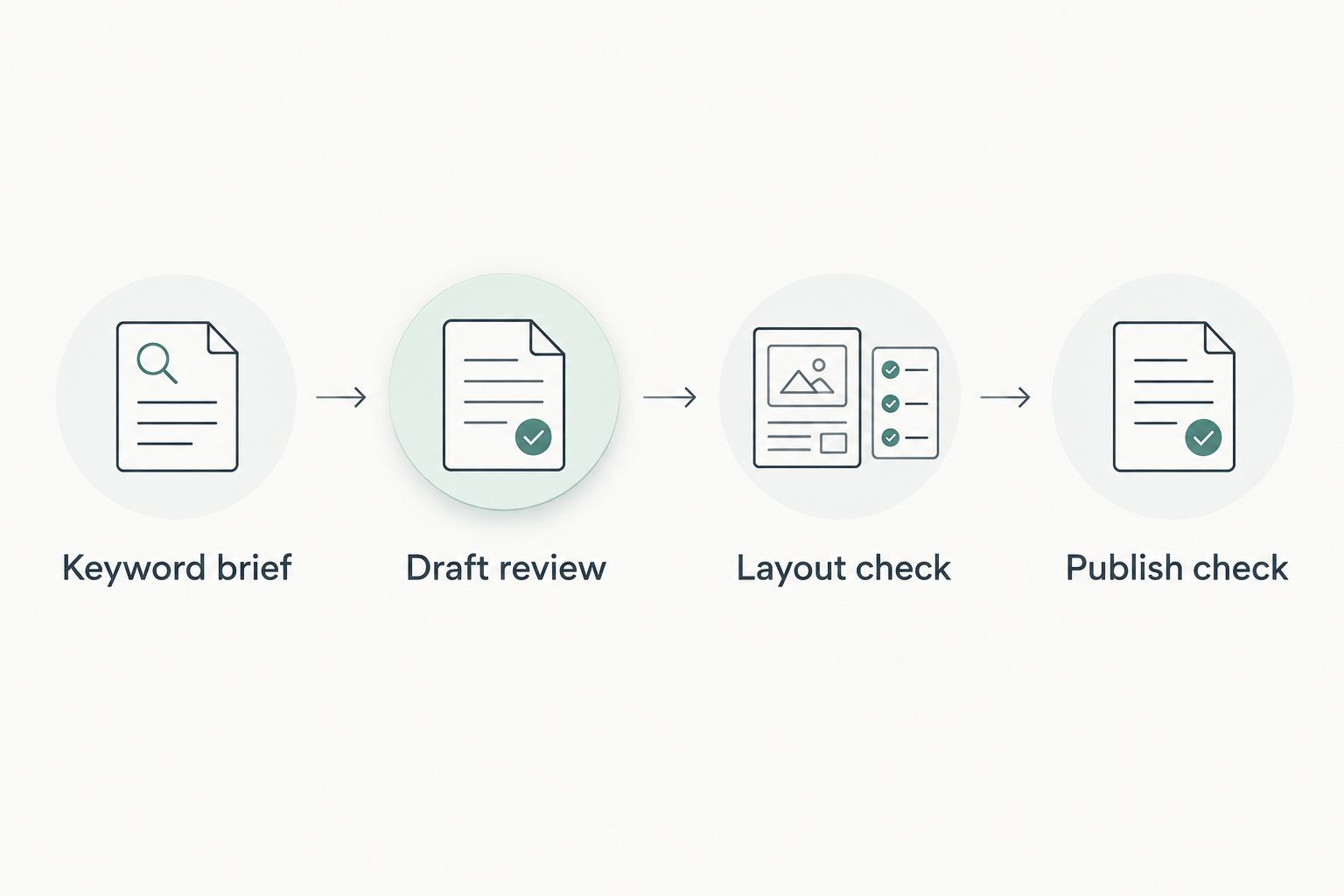
The publishing sequence should remain visible to whoever maintains the site: Keyword brief, Draft review, Layout check, then Publish check. Moving layout work earlier makes it easier to polish content that has not yet been approved.
Publishing and visibility settings
Publishing makes a page available; it does not guarantee indexing or ranking. Your final configuration unit checks the URL, publication state, and search visibility.
- Inspect site visibility. In WordPress, open Settings, then Reading. For a public business website intended for search discovery, check that Discourage search engines from indexing this site is not selected, then use Save Changes if you change it. Leave private staging environments protected.
- Confirm the intended URL. Check the permalink before publication. Use a stable, descriptive address rather than changing it each time the page receives an edit.
- Choose immediate publication or scheduling. Use the plugin's publishing or scheduling workflow after approving the content. If you use the WordPress editor, review its publication date controls and confirm the action shown before completing it.
- Check the site's timezone. Open Settings, then General, and inspect Timezone before scheduling. A correctly entered publication time can still be wrong for your business if the site's timezone differs.
- Verify the public page. After publication, open the URL while logged out. Confirm that it loads without a password or account requirement and displays the approved version.
- Record the baseline. Note the URL, target query, and publication date. If Google Search Console is configured, inspect the URL there and use its indexing information to distinguish a discovery problem from a ranking problem.
Expected result: The approved page is public at the intended URL, or has a confirmed future publication time. You have a record that connects the published page to its target query.
Use 3 publication checks: URL access, content accuracy, and next-action completion. These checks establish that the page works for visitors. They do not establish a first-page position.
For 2026 reporting, compare the page's search impressions, clicks, and relevant queries over time when those measurements are available. Do not report the number of published posts as evidence of ranking improvement.
Update the workflow when a service changes
The second variant starts with a business change rather than a new keyword. Use it when your service description, coverage, or contact process changes.
- Identify the existing page that contains the outdated information.
- Replace the inaccurate details and review the surrounding paragraphs for contradictions.
- Check whether the original target query still matches the revised service.
- Preview the page through its Elementor layout or shared template.
- Publish the revision and repeat the public-page checks.
Keep the existing URL when the page still serves the same purpose. A routine content correction does not require a replacement page. If you must change a URL, plan the redirect and update links that point to the old address.
This variant also applies to scheduled drafts. Review them when business facts change; a draft approved earlier in 2026 can become inaccurate before its scheduled publication.
Troubleshooting
The article is published but does not use your Elementor layout
Check whether the published content is a post or a page, then inspect the template assigned to that content type. A custom layout on one page does not automatically apply to newly published posts. Fix the template route before scheduling additional content.
The page shows the title twice
Inspect the theme or template title and the heading inside the content. Keep a clear main heading, then remove or disable the unintended duplicate in the relevant layout controls. Do not delete a useful title merely to compensate for an unexamined template.
The scheduled post appears at the wrong time
Check Settings, General, and Timezone, then inspect the scheduled date. If a scheduled post misses its publication time, investigate WordPress scheduled tasks and hosting configuration rather than repeatedly resaving the draft.
The page looks different after publication
Compare the logged-out page with the editor preview. Clear relevant site or browser caches, then inspect again. Check shared template settings before making page-specific changes that affect other content.
The page is public but receives no search visibility
Confirm that the URL is accessible, examine indexing information in Google Search Console, and check for an unintended noindex directive. If the page is indexed, review whether it answers a relevant query and duplicates an existing page. Publishing more similar pages is not the first fix.
Customize your workflow
Once one page passes the full process, reuse the editorial checklist and layout route. Expand into related customer questions only when each new page has a distinct purpose.
Keep a simple content register with the target query, destination URL, approval status, and next review trigger. A service change is a stronger review trigger than a calendar reminder alone.
Keep Improveseoplugin's local SEO publishing workflow focused on approved content. Use its research, generation, and scheduling capabilities for production; keep business approval and live-page checks as separate responsibilities.
FAQ
What is an Elementor local SEO workflow?
An Elementor local SEO workflow connects local keyword selection, content approval, Elementor layout checks, and WordPress publication. It keeps page design separate from decisions about search intent and business accuracy.
Can Elementor get my business onto Google's first page?
Elementor does not guarantee first-page rankings. It helps build the page, while search visibility also depends on relevance, indexability, and other ranking factors.
Who is Improveseoplugin best for?
Improveseoplugin is best for small local business owners who want local keyword research, branded content generation, and publishing inside WordPress. Business facts and the published layout still need review.
Should I publish a service page or a blog post for local SEO?
Use a service page for readers checking what you provide and how to contact you; use a post for a focused informational question. Choose according to the reader's task rather than treating either format as automatically better for rankings.
Will scheduled content automatically use my Elementor design?
Do not assume scheduled content will use a custom Elementor design. Confirm the content type and its template, then test a published example before scheduling more articles.
What should I check before scheduling local content in 2026?
Check business facts, the intended URL, the rendered layout, and the WordPress timezone before scheduling local content in 2026. After publication, verify the public page and its contact or booking action.
Should I create a new page whenever my service details change?
Update the existing page when it still answers the same customer need. Create a new page only when the content has a distinct purpose, not simply because an existing description needs correction.
One last thing
Make your first test a logged-out visit, not another look inside Elementor. Follow the page from its opening answer to its contact action on a phone. That test exposes publication, layout, and access problems the editing screen can conceal—and gives your 2026 workflow a concrete approval point before the next page enters the queue.