
Instead of manually publishing a new post each day, generate and review your content first, then assign each finished WordPress post a future publication date. This workflow separates writing from publishing so your local business content can go live without someone opening the dashboard at every scheduled time.
- For automatically publish ai content wordpress schedule searches, use reviewed drafts and future publication dates.
- Improveseoplugin suits small local businesses that want keyword research, branded content, and scheduling inside WordPress.
- Confirm the WordPress timezone before scheduling; the wrong timezone shifts your publication times.
- Scheduling publishes prepared content; it does not replace fact-checking or guarantee search rankings.
Why this matters
Automatic publishing should remove a repetitive task, not remove editorial control. A scheduled post still needs accurate business details, a useful answer, and a publication date that makes sense. Putting an unfinished article on a calendar only automates the mistake.
Improveseoplugin brings local keyword discovery, branded content generation, and publishing or scheduling into the WordPress dashboard. Its value is keeping these tasks together; you still need to approve what your business says publicly.
Improveseoplugin is best for small local business owners who want keyword research, branded content, and scheduling inside WordPress. The workflow below uses standard WordPress publishing controls rather than assuming particular plugin button names.
For your 2026 content calendar, treat each post as a finished asset with a scheduled release. Start with one reviewed article, verify that it publishes correctly, then expand the queue.
Before you start
- WordPress access: Use an account with permission to publish posts. Confirm that you can open the post editor and access the site's timezone settings, or ask your administrator to check them.
- Content materials: Have your service details, actual service area, preferred wording, and an approved topic ready. Improveseoplugin handles local keyword discovery and branded content generation, but your business facts remain the reference.
- Scheduling gotcha: WordPress scheduled publishing depends on scheduled tasks. On a low-traffic site using the default traffic-triggered WP-Cron system, a post can publish late; arrange reliable scheduled-task execution before relying on precise release times.
Do not begin by filling a month with unreviewed articles. Test the complete process with 1 reviewed post so you can check permissions, timing, and the public result before repeating it.
Single-post and batch scheduling
Choose the workflow based on how much content is already approved. Both use future publication dates; neither requires you to publish each article manually when its time arrives.
| Workflow | Best for | Advantage | Limitation |
|---|---|---|---|
| Single-post scheduling | Your first scheduling test or a time-sensitive article | Easier to inspect the content and confirm the publication result | Requires a separate scheduling decision for each post |
| Batch scheduling | Several reviewed articles with distinct topics | Lets you prepare the publishing calendar in one editing session | Creates more opportunities for duplicate topics or incorrect dates |
Use single-post scheduling first. Batch scheduling belongs after you have confirmed that your site's scheduled publishing works and your review process catches factual errors.
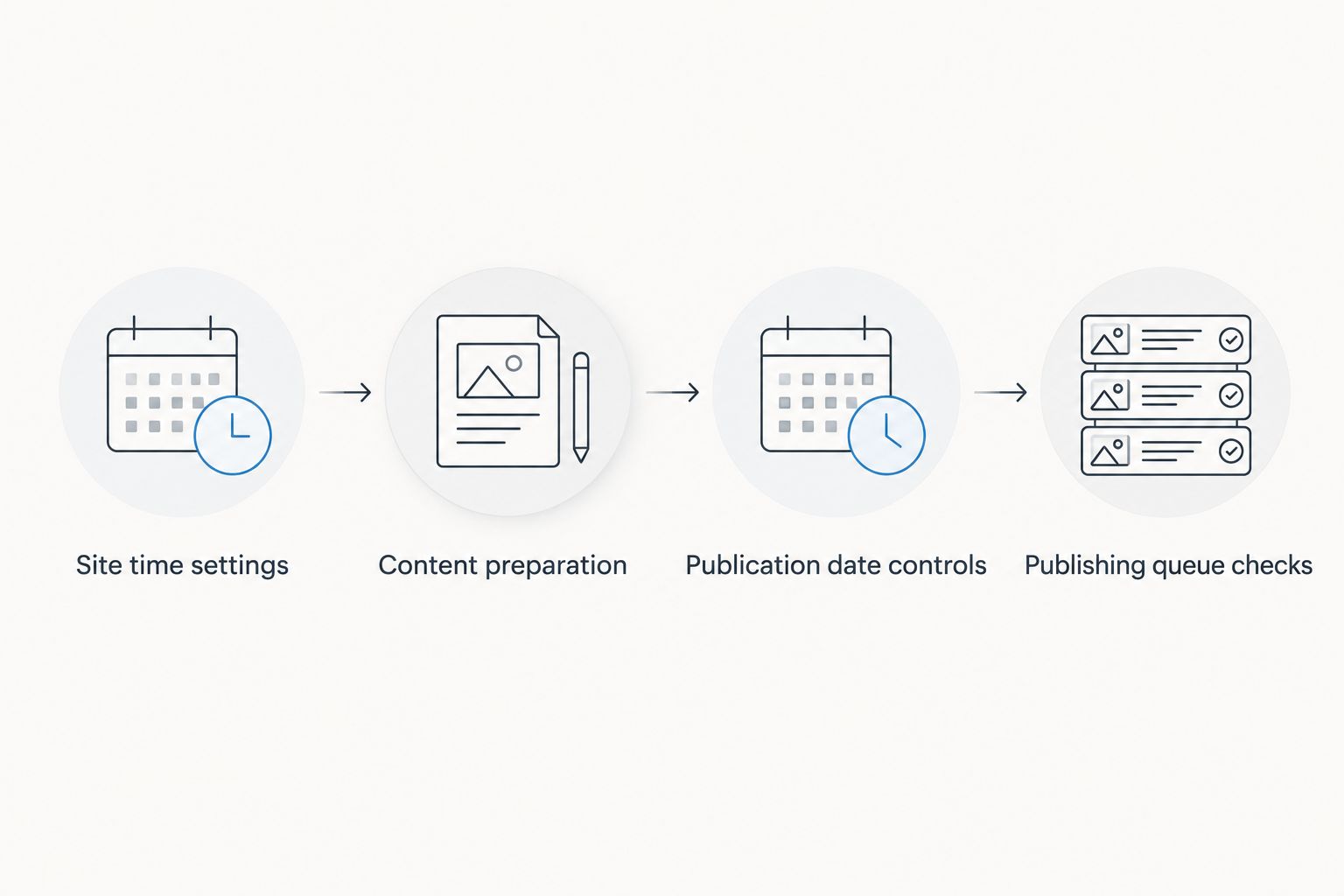
Site time settings
A WordPress publication time is only useful when you know which timezone it uses. Check the site setting before assigning dates, particularly when your computer and business operate in different locations.
- In the WordPress administration menu, open Settings, then General.
- Find Timezone and confirm that it represents the business's intended publishing timezone.
- Prefer the appropriate city-based timezone when you want WordPress to account for daylight-saving changes. A fixed UTC offset does not make those seasonal adjustments.
- Select Save Changes if you changed the setting.
- Write the timezone beside your publishing calendar so everyone assigning dates uses the same reference.
Expected result: You know which local time a scheduled publication date represents. You have also removed a common source of posts appearing earlier or later than expected.
For a 2026 calendar, do not copy times from another website without checking its timezone. The date shown on your planning sheet and the date entered in WordPress must describe the same intended release.
Changing the timezone after scheduling deserves another review of the queue. Check each future post's displayed date and time rather than assuming the existing calendar still matches your intention.
Content preparation
Start with a local question your business can answer accurately. A useful article explains a service, addresses a customer decision, or clarifies something people need to know before contacting you.
- Use Improveseoplugin to find a low-competition local keyword relevant to a service you actually provide.
- Generate branded content around that topic. Supply accurate business information wherever the content-generation workflow requests context.
- Open the resulting content for review before scheduling it. If your generation workflow does not place it in the post editor, transfer the approved text into a WordPress post.
- Verify every statement about service areas, qualifications, opening hours, guarantees, and business policies against your own records.
- Check that the article answers the chosen question without repeating the location name unnecessarily.
- Review the title, headings, links, and any images. Remove unsupported claims and any draft instructions that should not appear publicly.
- Use Preview in the WordPress editor to inspect the page before approving it.
Expected result: You have a finished post that can stand on its own when it becomes public. The article does not depend on someone correcting it after publication.
Use 3 approval checks for your 2026 queue: factual accuracy, local relevance, and presentation. These are review categories, not performance targets. A post that fails any category stays out of the publishing calendar.
Avoid creating separate near-identical articles for every nearby place name. Changing only the location does not give readers a different answer. Prepare a distinct topic or a genuinely useful local explanation instead.
Publication date controls
WordPress can schedule a prepared post without a separate automation connector. The key is selecting a future date before completing the publishing action.
- Open the approved post in the WordPress block editor.
- Open the editor's Settings sidebar and select the Post settings if they are not already visible.
- Find the publication date control. For a new draft, the Publish setting normally shows Immediately; select it to open the date and time controls.
- Enter a future publication date and time using the timezone you confirmed earlier.
- Check the date, year, and time again. An accidentally selected past date does not create the future publishing workflow you intended.
- Select Schedule. If WordPress shows a confirmation panel, verify the publication details and confirm Schedule there as well.
- Return to Posts, then All Posts, and confirm that the post has scheduled status with the intended publication date.
Expected result: The article is scheduled rather than immediately published. WordPress has a future publication time assigned to the approved post.
Editor controls differ between the block editor, the Classic Editor, and customized installations. If your interface does not match these block-editor labels, locate the publication date control in the editor you use rather than searching for an unrelated plugin setting.
Scheduling is not recurring generation. Assigning a future date publishes that prepared article; it does not instruct WordPress to write another article afterward. Keep content preparation and publication timing as separate tasks.
Publishing queue checks
A successful setup includes checking what happens after you select Schedule. Do not treat the button press as proof that the public article appeared correctly.
- Open Posts, then All Posts, and inspect the scheduled entries.
- Confirm that each title has the intended date and that no unfinished post entered the queue.
- After the test post's scheduled time, check its status in WordPress.
- Open the public article and verify the title, formatting, links, and business details.
- If WordPress reports that the post was published but the public page looks outdated, check your page cache and content delivery cache where applicable.
Expected result: Your test article is publicly accessible with the approved content. If publishing failed or ran late, you have identified the problem before adding a larger batch.
Keep a short record of the topic, scheduled date, and approval status. Your 2026 calendar should show what is ready to publish, not just what you hope to write.
Schedule a batch of reviewed articles
Batch scheduling is the adjacent workflow once your first post publishes correctly. It uses the same controls, repeated across approved posts; it is not a reason to skip review.
- Prepare a list of distinct customer questions and assign an approved article to each.
- Arrange the articles in a useful reading order. Publish an explanation before a follow-up that depends on it.
- Assign each post its own future date and time.
- Open each post, set its publication date, and select Schedule.
- Review the full scheduled list for repeated dates, unfinished drafts, and overlapping topics.
For a simple example, schedule approved posts 7 days apart. That interval is a planning choice, not a ranking requirement; choose a cadence your business can maintain without lowering review standards.
Expected result: Several finished articles have individual publication dates. You no longer need to return to the editor for each release, but you still control what enters the queue.
Do not bulk-schedule material whose details will change before publication. Recheck time-sensitive statements close to release, or remove those statements from evergreen content.
Troubleshooting scheduled publishing
The scheduled post did not publish
Check the post's status in Posts, then All Posts. A missed schedule points to a publishing task that did not execute as expected.
Ask your hosting provider or administrator to inspect WP-Cron execution. If traffic-triggered scheduling is unreliable, configure a server-side scheduled task using instructions appropriate to your hosting environment; do not disable WP-Cron without a replacement.
The article appeared at the wrong time
Check Settings, then General, then Timezone. Compare that setting with the date and time saved on the post.
Correct the calendar and review remaining scheduled posts. Pay particular attention to fixed UTC offsets when the business follows daylight-saving time.
Schedule is unavailable or the post publishes immediately
Confirm that you selected a future date and have permission to publish. A current or past date produces an immediate publishing action rather than a future schedule.
If your role cannot publish, send the reviewed draft to an authorized editor. Scheduling does not bypass WordPress permissions.
The public page does not show the approved version
First confirm that you are viewing the published URL rather than an editor preview. Then compare the published post with the editor content.
If the editor is correct but the public page is stale, clear the relevant cache. If the editor itself contains the wrong version, correct the content and save the intended changes.
Customize your workflow
Expand the process by improving topic selection and review, not merely by adding more publishing dates. Group local business questions by service, then identify which articles answer genuinely different needs.
Use Improveseoplugin for the local keyword and content-preparation work, with WordPress scheduling controlling publication. Keep a separate approval checklist for claims that only your business can verify.
For your 2026 workflow, assign responsibility for topic approval, factual review, and the final schedule. One person can handle all three, but each decision still needs to happen before a post becomes public.
FAQ
How do I automatically publish AI-written content on a WordPress schedule?
Prepare and review the article, set a future publication date in the WordPress post editor, and select Schedule. Confirm the site timezone and test that scheduled publishing executes correctly before building a queue.
Do I need a separate automation connector to schedule WordPress posts?
No. WordPress has native scheduling for prepared posts. Content generation is a separate task from assigning a future publication date.
Is Improveseoplugin suitable for a small local business?
Improveseoplugin is designed for small local business owners who want low-competition local keyword discovery, branded content generation, and dashboard publishing or scheduling. Review the generated content against your actual services and business policies before publication.
Why did my WordPress post miss its scheduled publication time?
A scheduled publishing task that does not execute can leave a post with a missed schedule. Check WP-Cron execution with your administrator or hosting provider, especially on a low-traffic site.
Can I schedule several WordPress articles at once?
You can prepare several approved articles and assign each its own future publication date. Review the resulting queue for unfinished drafts, duplicate topics, and incorrect dates.
Does scheduling a post also generate the next article?
No. Native WordPress scheduling publishes the prepared post at its assigned time; it does not generate another article. Treat writing, approval, and scheduling as separate workflow stages.
Can I schedule changes to an already published WordPress article?
Native WordPress post scheduling is not a scheduled-update workflow for an existing published article. Do not assume changing its publication date will hold edits for later; use an explicitly supported scheduled-revision process if you need that behavior.
One last thing
The safest automation boundary is after approval. Write and revise while the article is private; schedule only when you would be comfortable publishing the same content immediately.
A publishing calendar cannot correct an unsupported business claim. Before expanding the queue, open the first automatically published article as a customer would and check that it answers the question you promised to answer.