
Instead of manually turning every new local keyword into an article, use a WordPress workflow that moves approved keywords into branded content generation, then review and schedule the drafts. To automatically generate content from new local keywords without publishing irrelevant pages, keep keyword discovery, content generation, and publication as separate decisions.
- Improveseoplugin suits small local business owners who want keyword discovery, branded content generation, and scheduling inside WordPress.
- To automatically generate content new local keywords reveal, approve the service, location, and search intent before drafting.
- Content generation does not establish an automatic keyword-discovery trigger; configure only documented connections.
- Review business facts and search intent before scheduling local SEO content.
Why this matters
A newly discovered keyword is a content candidate, not a publishing instruction. A phrase can have low competition yet describe a service you do not offer, a location you do not serve, or a question an existing page already answers.
Improveseoplugin is a WordPress plugin for finding low-competition local keywords, generating branded content, and publishing or scheduling it from the dashboard. Improveseoplugin is best for small local business owners who want keyword discovery and content production inside WordPress. Its role is content preparation and publishing; your role is deciding whether the proposed page accurately represents the business.
For your 2026 workflow, define success as a relevant, accurate page that answers a local customer's question. Producing a draft is only an intermediate result. A repeatable process needs an acceptance rule, a content brief, and a final publication check.
Before you start
- Access: Have a WordPress account with permission to create and publish posts, plus access to the plugin's keyword discovery and content generation features. Confirm those permissions before preparing a batch.
- Materials: Gather your actual services, service area, preferred business name, approved descriptions, and existing page inventory. Use current business facts in every brief.
- The gotcha: Content generation and an event-triggered connection are different capabilities. Confirm a documented discovery-to-generation trigger before treating a newly found keyword as an unattended action; otherwise, use a deliberate approval handoff.
Build a small test before committing your publishing calendar. Start with 1 keyword per brief and 1 draft per distinct search intent. These are workflow limits, not performance benchmarks: they make it easier to identify which keyword produced which draft and to catch duplication.
Do not assume another automation service is required. A workflow that stays inside WordPress avoids an unnecessary handoff when discovery, generation, and scheduling already meet your needs. Add a separate connection only when its documented behavior solves a specific problem.
Keyword intake
The keyword intake stage determines whether a discovered phrase deserves a new page. Apply the same rules to every candidate in your 2026 content queue, rather than accepting phrases solely because they look easy to rank for.
- Open the keyword discovery feature and select a phrase that matches a service you actually provide. Reject phrases that imply unsupported services, qualifications, or locations.
- Identify what the searcher wants: an explanation, a service provider, a process, or an answer to a specific question. Write that intent in plain language.
- Check your existing content inventory. In WordPress, open Posts and All Posts to inspect published posts and drafts; check existing pages as well.
- Choose the destination: a new draft, an update to an existing page, or no content action. Do not create another page merely because the wording differs.
- Record the accepted keyword, intended audience, location context, destination, and approval status in your working queue.
Expected result: Every accepted keyword has a clear purpose and a destination. Rejected keywords stay out of content generation, and existing-page topics go into an update queue instead of producing duplicate drafts.
Two searches can use different wording while asking the same question. For example, a question about arranging a local service and a question about booking that service might belong on the same page. Compare the answer each search needs, not just the words in the phrase.
Keep the intake record short enough to maintain. A keyword, an intent statement, and a destination are more useful than a long spreadsheet nobody updates. Add detail only when it changes the drafting decision.
Content brief
A content brief connects an approved keyword to the facts the article is allowed to use. It also gives you a stable input when you repeat the workflow or replace a draft.
- Enter the approved keyword into the content generation workflow. Keep the original phrase in your intake record even if the article uses a more natural variation.
- Specify the reader and the question the page must answer. Describe a real customer need rather than requesting a generic article about the location.
- Supply the approved business details: services, service area, business name, and relevant explanations. Exclude anything you cannot substantiate.
- Define the content boundaries. Tell the drafting process not to invent testimonials, certifications, guarantees, prices, staff details, or project results.
- Set the next action the reader should take. Reference an existing, relevant business page or explain the action in prose when no suitable destination exists.
Expected result: The brief contains enough information to draft a useful article without filling gaps with invented business facts. Anyone reviewing the draft can trace its main claims back to the brief.
Use the brief as the source of truth, not the generated draft. A polished paragraph does not establish that a claim is correct. If the draft introduces a service promise that the brief never included, remove the promise rather than adding it to your business description.
For a 2026 brief, separate durable explanations from details that change. A description of how customers prepare for a service can remain useful; a business policy needs confirmation whenever it appears. This distinction keeps the review focused on claims that require checking.
Draft generation and review
Once a keyword passes intake and has an approved brief, use the content generation feature to prepare the article. Improveseoplugin supports branded content generation, but brand alignment still requires accurate inputs and editorial review.
- Generate the draft from the approved brief. Keep it unpublished while you inspect the result.
- Check the opening paragraph. It should answer the searcher's question directly rather than introduce the topic with general background.
- Run 2 review passes: one for business facts and one for usefulness. In the facts pass, verify every business claim; in the usefulness pass, check whether the reader gets a clear answer and next action.
- Remove repeated paragraphs, unsupported local details, and keyword repetitions that make sentences unnatural. Add specific explanations from your approved materials where the draft is too general.
- Use WordPress Preview to inspect the rendered article. Check headings, paragraph breaks, links, and any included media before publication.
Expected result: You have an unpublished article that answers one distinct search intent, accurately describes the business, and reads correctly on the site.
The process is a sequence, not a single publishing command. Each stage has a different job: intake rejects bad candidates, the brief supplies facts, generation prepares prose, and review decides whether the result is publishable.
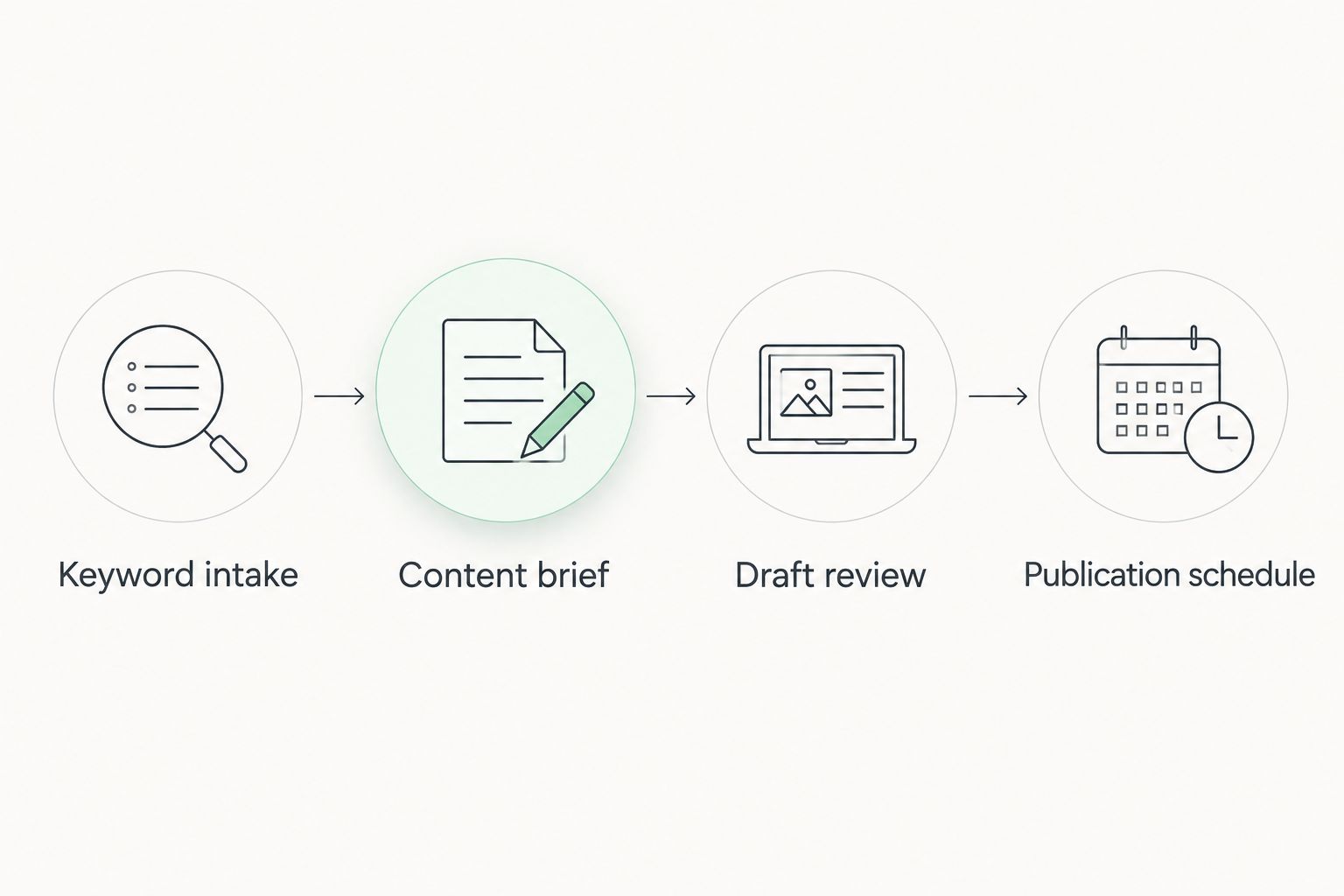
Do not use a second draft to avoid correcting the brief. If repeated outputs describe the wrong customer, service, or location, fix the input first. Generating more versions from the same incorrect instructions repeats the underlying problem.
Publication schedule
Scheduling is a separate decision from generation. A draft belongs on the calendar only after it passes review and has a clear relationship to your existing content.
- Open the reviewed draft and confirm its title, URL slug, headings, and destination links. Make the title readable rather than forcing an awkward keyword string into it.
- Check the site's timezone under Settings and General before choosing a publication time. A scheduling date is interpreted using the site's configured timezone.
- Set the intended publication date and time in the post's publishing controls. Use Schedule for a future publication rather than publishing immediately.
- Return to Posts and All Posts to verify the draft's scheduled status. Check the date shown against your editorial calendar.
- After the scheduled time, open the live page and verify its content and links. Confirm publication rather than assuming the calendar entry completed successfully.
Expected result: The approved article has a verified publication time, and the live page matches the reviewed draft after it publishes.
For your 2026 calendar, choose a cadence your review process can support. Do not fill every opening simply because more keywords are waiting. An article that requires corrections belongs back in review, not on an earlier publication date.
Update existing content when a new keyword fits
A new local keyword does not always require a new article. When an existing page already answers the same underlying question, use the discovery to improve that page instead.
Choose the workflow by search intent, not by keyword novelty:
| Workflow | Best for | Advantage | Limitation |
|---|---|---|---|
| New draft | A distinct customer question not covered elsewhere | Gives the question a focused answer | Requires a new page to review and maintain |
| Existing-page update | A new phrase that matches an established page's intent | Keeps related explanations together | Requires checking the whole page for consistency |
For an update, open the existing post through Posts and All Posts, then select Edit. Identify the unanswered question before changing the article. Add or revise the relevant section, review the full page, and use Update when the changes are ready.
Expected result: The existing page answers the additional question without becoming a collection of loosely related keyword sections. Its title and opening still describe its central purpose.
Keep the update focused. A local modifier alone is not a reason to copy an article into another page. Create a separate page only when you can provide a distinct answer grounded in the business's actual service and location context.
Troubleshooting
A discovered keyword never becomes a draft
Check the handoff between discovery and generation. A phrase appearing in keyword results does not establish that an automatic trigger has fired. Use the documented connection if one is configured; otherwise, approve the keyword and start generation deliberately.
The draft invents business details
Correct the brief and remove the unsupported claims. Supply the real service area and approved service descriptions, then check the replacement draft against those inputs. Do not publish invented testimonials, qualifications, guarantees, or results.
Several drafts answer the same question
Compare their search intent and combine overlapping explanations into the strongest destination. Keep a record of which approved keywords belong to that page. Different phrases do not automatically justify different articles.
The scheduled time looks wrong
Check the WordPress timezone under Settings and General, then inspect the post's scheduled date and time again. Correct the schedule before publication rather than compensating with a guessed time offset.
A post remains scheduled after its publication time
WordPress scheduled tasks depend on its scheduling system, including WP-Cron. Ask the site administrator or host to check scheduled-task execution and confirm that the task system is functioning. Verify the post status before manually publishing to avoid conflicting actions.
Customize your workflow
Once the basic handoff works, add business-specific acceptance rules. Require a service match, a valid service area, a distinct question, and approved facts before a keyword moves into drafting.
Separate new content from maintenance. Your 2026 queue can contain both new articles and updates, but each entry needs an explicit destination. Assign review responsibility before scheduling so unfinished drafts do not become calendar commitments.
Improveseoplugin's local SEO workflow brings discovery, branded drafting, and publication into WordPress. The benefit is fewer separate content-production steps; the limitation is that keyword relevance and factual accuracy still need your judgment. Automate preparation, not acceptance.
FAQ
How do I automatically generate content from new local keywords?
Approve each keyword, supply a factual content brief, generate the draft, and review it before scheduling. Use an automatic discovery-to-generation trigger only when that connection is documented and configured.
Does finding a keyword automatically publish an article?
Keyword discovery and publication are separate actions. Keep approval and draft review between them so an irrelevant phrase does not become a live business page.
Who is Improveseoplugin best for?
Improveseoplugin is best for small local business owners who want keyword discovery, branded content generation, and publishing inside WordPress. The workflow still needs accurate business inputs and publication review.
Should every new local keyword get its own article?
No; create a new article only when the keyword represents a distinct question that existing content does not answer. Update an existing page when the search intent matches.
Can I schedule generated content in WordPress?
Yes; WordPress supports scheduled posts, and the plugin description includes publishing and scheduling from the dashboard. Review the draft and confirm the site's timezone before setting its publication time.
What should I check before publishing generated local content?
Check service claims, service area, business details, search intent, and links before publishing. Remove unsupported statements even when they sound plausible.
Why did my WordPress scheduled post not publish?
A scheduled post can remain unpublished when WordPress scheduled tasks do not execute. Ask the site administrator or host to check WP-Cron and verify the post's status before taking further action.
One last thing
A rejected keyword is a useful workflow result. It prevents you from spending review time on a page that does not belong on the site.
Keep a short rejection reason beside each discarded candidate: wrong service, wrong location, or duplicate intent. Reuse those decisions during your next discovery session. The strongest content workflow does not turn every keyword into prose; it consistently identifies which questions your business can answer.